Wednesday, October 17, 2018

Nearpod Field Trips, Global Read Aloud, Guided Access on iPads

Global Collaboration

For the month of October, we will focus on the "Global Collaborator" and we will focus on tools that provide students with the opportunity to engage with people and places outside of their own community. 


1.  Nearpod Virtual Field Trip

Chris and I have used a few Virtual trips in Nearpod already with students this school year, and they LOVE it!  It's so simple to add a virtual field trip to an already existing Nearpod presentation, or to simply create a quick field trip within Nearpod.  There are no special Virtual Reality Glasses or anything else needed!  Maybe you'll take a trip to the setting of a book your class is reading, or perhaps to a place where a music composer or Olympic athlete grew up, a board a ship in Ketchikan, Alaska, Glacier Creek in the Rocky Mountains, or the Botanical Gardens in Florida?   The opportunities are endless and can fit into all curricular areas!


  1. Log-in to Nearpod
  2. Select Create
  3. Choose Add Content and Select Virtual Field Trip
  4. Use the Search feature to find most any location you'd like!


That's it!!!


For all other features of Nearpod, please review "Nearpod in a Nutshell" that Erin created (previously posted in September).  Log in using the code APMCT.


Image result for you hold me up
Week 3's Book - You Hold Me Up

2.  Global Read Aloud

If you didn't read this week's book You Hold Me Up yet, we highly recommend it, as it fits nicely into our SEL curriculum, and can easily be found on EPIC! books, too.

Please know that you can participate as much or as little as you would like, and to contact Chris or Erin if you would like to be partnered up with another classroom at Pennridge to talk about the book.  Remember to share you pictures and/or stories in this Google Drive folder!


Week 4's Book - A Day with Yayah and
Week 5's Book When we Were Alone


Next week's book is A Day with Yayah by Nicola I. Campbell, followed by the final book in the read aloud When we Were Alone by David Robertson.  It doesn't appear there are tons of resources out there for this book, but we did see one in the Seesaw Activities Library if you're interested.  


3.  Guided Access on iPads

Do you have a student or group of students that can easily get side-tracked when using the iPads?  You might want to give Guided Access a try!  Guided Access limits your iOS device to a single app and lets you control which features are available.  Follow the quick steps in Erin's tutorial here, set a passcode and time limit, and you're ready to go!


Thursday, October 11, 2018

Skype in the Classroom, Global Read Aloud, Sign-out Procedures

Global Collaboration

For the month of October, we will focus on the "Global Collaborator" and we will focus on tools that provide students with the opportunity to engage with people and places outside of their own community. 

1.  Skype in the Classroom

Image result for skype in the classroomSkype in the Classroom brings other classrooms and destinations into your classroom.  The key to Skype in the Classroom is the Microsoft Educator Community, which allows safe and curricular driven experiences to connect with your classroom.  Please find a step by step video on how to register for the Educator Community on the Pennridge Around the World website crafted by Erin, which does a fantastic job reviewing experiences that have been really successfull in the past.

After much trial and error, we have found that regular Skype works much more effectively with classroom connections.  However, it is not possible for new teachers to sign up for a regular Skype name.  In this way, we have created a Skype username for each school to use for these connections.  Chris will send out an e-mail with this login information at the start of next week.  If you have a username that has worked please feel free to keep using it!

Pennridge teachers have had some great success with two different types of connections:
  • Author visits - fantastic for making connections with literature, speaking to an author allows students to ask questions about a book from the source as well as learn from a writing professional firsthand.

Image result for you hold me up2.  Global Read Aloud

Next week's book is You Hold Me Up by Monique Gray Smith, Illustrated by Danielle Daniel.  You can see the author read the book on YouTube here and about the author note here to get a sense for how the author uses the text with students.  In addition, this book can also be found on EPIC! 
 Please know that you can participate as much or as little as you would like, and to contact Chris or Erin if you would like to be partnered up with another classroom at Pennridge to talk about the book.  Remember to share you pictures and/or stories in this Google Drive folder!


Week 4's book is A Day with Yayah by Nicola I Campbell and Julie Flett

3.  Signing Out 

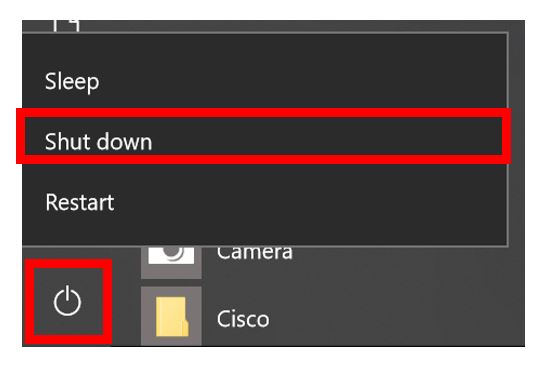
With the new windows update, it is important that students use the logout button as it is pictured to the right and stay away from switching users.  When too many people are logged in, it creates a logjam of users that impacts the performance of the machine.  In addition, laptops should be shutdown when being stored.  A quick suggestion:

  • Most of the time students should click on the start menu, choose the profile icon in the start menu and choose "Signout."  


  • If it is at the end of the day, students click on the start menu, click the power button, and then "Shutdown."


Congrats to the many students and classrooms who completed the EPIC! Book Fall into Reading Book Challenge!


Tuesday, October 2, 2018

Global Collaborator

Global Collaboration


For the month of October, we will focus on the "Global Collaborator" and we will focus on tools that provide students with the opportunity to engage with people and places outside of their own community. 

Global Read Aloud continues this week

We understand that classrooms are very busy places, and we wanted to remind you that participating  in the Global Read Aloud (GRA) is optional.  We would be remiss, however, if we didn't mention this global opportunity.  Some classes will simply read and discuss one of the stories, others might read more than one, and others might finds ways to collaborate across district or perhaps globally. That is up to you!

We invite you to use this Powerpoint to share about the GRA with your students.  Feel free to edit as you see fit.  To download your own copy, choose "Download As" under the file tab.

If you are looking for a teacher-partner in the Global Read Aloud, please click here and sign up with another teacher in Pennridge.

And finally...please take pictures!
We will be making a Global Read Aloud display board for 21st Century Learning Night in May.  We want to showcase all the amazing ways we have collaborated during this wonderful opportunity.  Please send any pictures you have or a short "blurb" of what you did throughout this event here or email Erin (ereichert@pennridge.org).    And although National DOT day is not part of GRA, many classrooms across the world were reading that book, and we encourage you to share those pictures and activities as well, for a separate board!
Our displays will certainly be much more powerful with pictures from your classrooms, and perhaps even with classrooms across the world.  

Week 2: Wild Berries by Julie Flett

Week 3: You Hold Me Up by Monique Gray Smith

Updates: EPIC and Seesaw


EPIC Fall into Reading: Top Classrooms and for a live view of how many books are being read!  The competition ends tomorrow!


Seesaw Social: Finally, we hope you'll join us on Saturday for our 2nd Annual Seesaw Social!  Please let us know if you're coming by using this form!

Touch Devices in the Elementary Schools


You may not have noticed, but the new computers in the Elementary school contain a touch screen that can be bent back and used as a tablet.  In this way, there is a "tablet mode" that allows the machine to switch between using the machine as a typical laptop and using the machine as a tablet.
There are 2 ways to get the below options:
1.  Start at the right of your screen and swipe left OR
2.  Click the notifications icon (in red) at the bottom right of your screen.

Some informational pieces about this feature:

  • The touch features of the screen will work as a laptop or as a tablet, so students can operate the touchscreen and keyboard interchangeably as they use the device as a laptop.
  • When the screen is folded back as a tablet, it locks the keyboard, which will prevent the keys from being used unintentionally.
  • The student devices often do not switch to tablet mode automatically.  To switch back and forth, click the notifications button in the lower right hand corner of the machine near the clock, and then choose the "Tablet Mode" icon.  When Tablet Mode is highlighted it will work as a tablet, and when Tablet Mode is not highlighted it will work as a laptop.

Wednesday, September 26, 2018

Empowering Learners with EPIC!, Global Read Aloud, and Tech Assistance


FALL into Reading

Our focus on the ISTE standards entitled Empowering Student Learning with Technology continues with September's focus, the Empowered Learner. This week's post will also tie into our October standard:  Global Collaborator

This week's focus is using EPIC books!

For those of you who may not be familiar with EPIC!, we have created a brief tutorial to help you get started.  EPIC! is the Netflix of books!  You can simply add students, and even create groups to choose specific books (collections) and levels for that particular group of students.  For the week of October 1-5, they have challenged all classrooms to log 50 books, and those classrooms will receive a certificate for each student!

October begins the Global Read Aloud

 If you'd like to know more, please click here.

Week 1October 1-5- My Heart Fills with Happiness by Monique Gray Smith
Lucky for us, this story is part of EPIC!  We encourage all teachers to read or listen to this book in their classrooms for this week.  You can read it whole group, or assign it to your students!

You can also have the author read it to your class with this link.

Global Collaborator: 

Once you've read the book, we encourage you to share your reading experiences with another teacher in the district.  Perhaps your classes will share via FlipGrid or Padlet?  Perhaps you'll all read the book and Skype together to discuss the book!  Please keep Chris and I in mind when planning to collaborate with another class!  Let us know if you're looking for a class to share with!

Seesaw Corner:  Week 1- My Heart Fills with Happiness- Seesaw Activity- click here!

Note:  Week 2:  October 8-12- Wild Berries by Julie Flett

The last 2 posts today are review from past posts, but are beginning of year reminders!

2.  iPad Use and Cleaning techniques

 It is very important that students close down app AND websites on the iPad when they are done using the iPads.  Most students are familiar with closing down apps by clicking the home button 2 times, and then swiping the app up and off the screen.  However, it's also important to close down any websites used, so student information, test scores, etc. is not shared.  To close down a website, you will click on the website and see 2 squares at the top right (see picture).  By clicking on them, it will show you all websites open and make it easy to "x" them out from there.


Please teach your students both techniques to "clean up" before the next class uses the iPads!

 In addition, if you are a teacher who uses iPads often, please be sure to take a look at iPad Management!  Attached here are iPad use posters you can easily print and display in your classroom!  (All of these links are also found on the Tech Integrator's website under Tutorials for Teachers).

3.  PowerTeacher Gradebook

If you are having trouble viewing your students in your gradebook, please make sure that you have selected the appropriate year and class in the top left. If you are not using Gradebook and you'd like to know more, please reach out to Chris or me.  It is an unbelievable tool, and we'd be happy to help!


Tuesday, September 18, 2018

Empowering Learners - Seesaw

1.  Empowering Students With Technology

Throughout this school year our blog post will be featuring technology tools that empower student learning.  A strong resource for understanding these possibilities comes to us from the International Society for Technology Education (ISTE), which has created a student centered set of standards that represent much of Pennridge's focus on technology.

This month we have focused on the "Empowered Learner".  We will focus on tools that provide student choice and voice within their classroom activities.  Check out last weeks post on Nearpod if you missed it!


This week's feature: Seesaw

Few applications empower student learning like Seesaw.  Students are encouraged to reflect upon their learning, illustrating growth as well as the challenges they have faced and overcome.  In addition, the end result is a online portfolio of their learning that really demonstrates how technology can give students the tools to grow academically, socially, and emotionally.

While we have focused on Seesaw quite a bit already, we wanted to spotlight the Activities Library, which provides fantastic ideas that are already developed for you - just make a copy and send it to your students.  You can also customize activities very easily to fit your needs.  Some examples:

I am an Empowered Learner - Although slated for 2-3 graders, this activity could be easily adjusted for goal setting at the beginning of the year.

Global Read Aloud Activities - Seesaw is a great way to introduce the Global Read Aloud Initiative in October.

  • Duck! Rabbit! Reading Response - While this excellent primary lesson does focus on a specific text, the thought provoking questions could be customized to most any picture book character.  This book and many other books are available electronically through the Bucks County Library System as another resource to the fantastic libraries we have at Pennridge.
  • Make Predictions About Your Book - Although focused on a specific text, this activity can be customized to fit any book.
  • Reading Storyboard - A fantastic text reflection activity for any text and most age groups.

The last 2 posts today are review from past posts, but are beginning of year reminders!

2.  Moving Photos from iPad to a Computer

District management software has locked down the iPads for connecting to computers.
Please load Google Drive (found in the Self-Service app) onto the iPad that has the pictures, and open Google Drive with your Pennridge Account. You can then select all the photos and save them to your Google Drive. Next open Google Drive on your laptop and all the photos are now available to you.  Click here for a printable tutorial on how to do this!


 Click here for printable iPad Rule posters to hang in your classroom.

3.  Please be sure your students are appropriately signing-out of laptops. 

Students should click the Start Window at the bottom left and find their name at the top.  Then, students will select Sign-out.  At this time, it is very important NOT to close the lid of the laptop until the signing out process is complete.  Some students are rushing this, and therefore, the device is not successfully signing out and the device will run slower until properly signed out.

Thursday, September 13, 2018

Trends in Technology

1.  Empowering Students With Technology - ISTE Standards

Throughout this school year our blog post will be featuring technology tools that empower student learning.  A strong resource for understanding these possibilities comes to us from the International Society for Technology Education (ISTE), which has created a student centered set of standards that represent much of Pennridge's focus on technology.

This month we will focus on the "Empowered Learner".  We will focus on tools that provide student choice and voice within their classroom activities.

This week's feature: Nearpod

Please remember that you all have access to Nearpod, and although the librarians are covering the important topic of Digital Citizenship, Nearpod is a tool that should still be used in your classroom. By giving your students a 5 digit code, it allows you to control what is on their iPad or laptop, and you can even assign Nearpod codes as self-paced lessons which are perfect for station rotations, small group work, and/or even homework.  If you are unsure of your username/password, please contact Erin or Chris at anytime.

  • I've created a Nearpod that can help you you explore some of these new features in less than 3 minutes!  You'll see the many ways this tool can be used in your classroom in ALL areas!  Go to Nearpod.com or log-in to Nearpod on an iPad.  At the top, find the area titled "Enter Code".  Use the code APMCT.  Have fun!
  • In addition to the SEL lessons teachers made here in Pennridge, there are lessons Nearpod users have access to that are completely free and editable and will match all curriculum areas.  Nearpod is appropriate for all grades, even Kindergarten!
  • You can upload an existing Powerpoint into Nearpod easily and add some formative assessment tools.
  • Best of all, this data is immediately sent to your account.  If it's a live lesson, you can see all student responses as you go.  The analytics of each lesson are in your account and can easily be saved and printed at any time!
  • Share-  As a teacher, you can see all student responses, but if you have a specific student response you want EVERYONE to see, by clicking on the Share button, it will be visible on ALL student devices, too!  A Very powerful tool to help all students stay engaged...
  • District Library- you can find a lot of resources that Pennridge teachers have added to in our district library.  To access you district library, sign-in to Nearpod, click on Explore at the top left, and click District Library. You'll see a screen that looks like this

  • Some main Nearpod features (highlighted in the Nearpod I've created)
    • Some easily added content can include:  PHET simulations, virtual field trips, video, and easily upload any file from your device
    • Some easily added activities can include:  Open-Ended Questions, Quiz, Draw-It, Collaborate (which is like Padlet), Poll, and Fill-in-the-Blanks

The last 2 posts today are review from past posts, but are beginning of year reminders!


2.  Changing your Signature in Microsoft Outlook

If you need to update your signature with a new teacher assignment, new phone number, new website, etc, please follow these steps:
  • Open Outlook (make sure you are using the App Version, which is found in your start window and titled "Outlook 2016")
  • Choose File in the top Left and Scroll to Options.
  • Select Mail and Signatures (See image)
  • Remember your signature should include your building, your position, your phone number and extension, and any other information you feel would be helpful.

3.  Projector Remote

 Using main teacher features of your projector remote:

  • A/V Mute button- This will allow you to put your remote to "sleep" without turning it completely off.  This will save time as you go to use it again.
  • Freeze button- This function allows you to freeze what is on the screen, so that you can go to other sites or prepare other features on your computer before sharing with the students.
  • Zoom In/Out.  Use this feature to zoom in/out of your screen.  This is especially helpful to make certain parts of your presentation enlarged during discussion.  Remember to zoom out when done.  Note- Mimio Users- this will alter your calibration.
*Not all remotes are the same as the one pictured here, but all remotes will have these buttons!

Wednesday, September 5, 2018

Seesaw, EPIC!, and iPads

1.  Seesaw Tricks 

Chris and I are fans of Seesaw, and we encourage all teachers to use this amazing digital student portfolio if you are not already doing so.  A huge benefit to Seesaw is that it can be done on any iOS or Android device, or any computer with internet connection!  We love seeing all the ways different classrooms are using this tool! Here are some tips to think about!

Sharing a Welcome Post to students or families? 

  • If so, you will want to post to the "Student Journal" in Seesaw if the students/families are not yet connected.   If you select Announcement, only students/families that are already signed-in will see the announcement.    Once everyone is signed in, then the Announcement feature is the way to go!

Seesaw Translates for up to 55 languages! 

  • If a note, caption, comment, announcement, or message is written in a language that is different from the language of a family's or teacher's device, a "See Translation" option appears below the post.  Tap that button, and Seesaw automatically translates any text into your native language.  Note:  Students do not have access to this feature.  Please view this video if you have families in your class who would benefit from this amazing feature.

  • "TAG"- To get some ideas on how to encourage parents and students to make positive (and helpful) comments on work, please see the images!
  • Follow Seesaw on Twitter @Seesaw or follow "Seesaw Teachers" on Facebook for tons of ideas and tips/tricks from other teachers around the world.  In addition, for most any tutorial made by Seesaw, search on Youtube or view their "PD in our PJs" live webinars or recorded tutorials!

Our 2nd Annual Seesaw Social is scheduled for Saturday, October 6th from 9:30-10:30AM at the PHS Library.  Please save the date.  More info coming!

2.  EPIC! Books 

If you haven't signed up yet for EPIC!, we encourage you to do so.  After signing up, you can print the Epic! Readerpillar and hang it up in your classroom. As your students reach reading goals throughout the year, EPIC will email you special badges to add to it


You can also add your own reading rewards – extended recess time, an in-class movie day, pajama day, or playing a favorite class game!


3. iPad Use (For ALL teachers who use iPads)

Please take a moment to review these iPad tips and tricks- Specifically please take a moment to be sure you know how to download apps from the Pennridge Self-Service catalog and how to turn off notifications, so our students are able to make the most of their iPad times!