Wednesday, May 8, 2019

Highlights

In this busy time of year we wanted to provide a very useful iPad tip and highlights of what's to come in Pennridge.

1. iPad Tip- Using the new Close Tab Feature in Safari

As multiple students use the iPads the amount of tabs open in Safari can get pretty large very quickly.  A new iPad update allows you to close all of these tabs with one click.  When you hit the small square in the upper right hand corner you will see the tabs normally.  However, holding the done button in the upper right hand corner will allow you to close all your tabs with one click. 

2. Seesaw for Schools

Pennridge Elementary schools will be transitioning to Seesaw for Schools this week!  This premium version of Seesaw offers some excellent new features such as additional multiple co-teachers, scheduled assignments, and school wide activity libraries.  We will be featuring some of these new features in the coming weeks and during the June professional development days.  A short summary of these features can be found here.Your students and parents won't see a difference in their access, but we hope you find the new features of Seesaw for Schools helpful!

3. 21st Century Learning Night

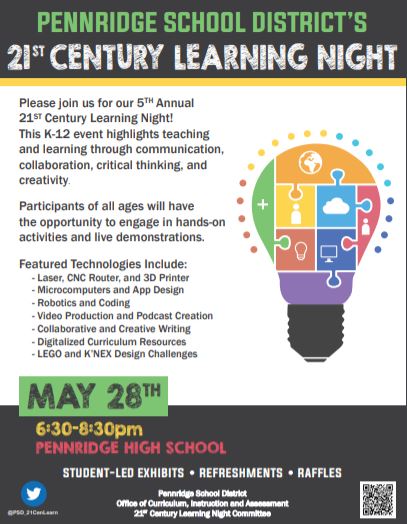
Please consider supporting your fellow teachers as they present at this year's 21st Century Learning Night, which will be held at Pennridge High School on May 28, 2019 from 6:30 to 8:30 pm.  Students and teachers will be demonstrating the innovative projects and lessons they have worked so hard to complete over the course of the year.  In addition to seeing our students at their best, it is also a great way to see what other teachers are doing in their classrooms.  We hope to see you there!

Saturday, April 20, 2019

Flipgrid Fever, 21st CLN, and Ozobots

Creative Communicator 

April's ISTE Standard is Creative Communicator.  We will focus on tools this month that help communicate a message clearly and effectively to one's audience.

1.  April 24th was #StudentVoiceDay

Flipgrid is not about recording videos...it's about learning!  Learning that is social, personal, can happen anwhere and anytime, about making connections, it's deep exploration, and promotes that everyone is a teacher and everyone is a learner.  Lately Flipgrid  shared even more resources.  This week's post will share the most recent tips, tricks and ideas Flipgrid has to offer.

1.  Tips and Best Practices:

  • Start Simple-  If your students are a bit hesitant to put themselves on the camera, their nerves will be stronger if you ask them a tough question right away.  Start with something that will get them (and you) comfortable, such as "If you had to eat only one more for the rest of your life, what would it be?"  "If you had to live in another country, where would it be and why?"  "What's the hardest you've ever laughed?  Tell us the story." 
  • Moderate Topics-  The moderation feature allows you as the educator to choose which responses show on the grid, so shy students can respond without all of their classmates seeing the responses.  To do this, use the Actions button to Edit Topic, and scroll to Topic Details to toggle this switch on/off.  In this same area, you can make many other settings adjustments to fully customize how you want your grid to look and feel.
  • Use a checklist or rubric- This will help students to feel more prepared in their response.
  • Share yourself as an educator recording.  If students see you relaxed, silly at times, and creative in a response, students will feel more comfortable to do the same!
  • "Feature this Response"- Use this feature option to highlight student responses or share examples that other students can learn from!
  • Record with a Buddy or Group-  Motivation and confidence increases with the support of others.
  • Record something else!  Yes, that's right, student's don't have to be seen- just use the camera the opposites way or have them hold a picture, project, or book to capture something else as they are speaking.
    • Appsmash- Appsmashing is the process of combining 2 or more apps in order to expand the possibilities for increased impact!   We recommend Chatterpix for a quick and easy way to do this  (see our last blog post).  Flipgrid and Chatterpix appsmash well.
View the Flipgrid picture tutorial here!  Even if you've been using Flipgrid, you might see something in this tutorial that you didn't know Flipgrid could do!

Bonus Blog Feature-  

View the Flipgrid some elementary teachers experimented with and responded to almost 1 year ago, please use the flip code 1eda79 at flipgrid.com. The password for this grid is June2018.  Perhaps you posted something at the end of our June sessions and forgot about it!? Perhaps you'll view some others' responses and learn something new!  Have fun!


2. 21st Century Learning Night


3.  Ozobots

We have shared many new activities in the Ozobot Google folder for all of you to see and use!  Most recently, we've posted for Math Top-It games, summarizing, coding through maps and states, rhyme time, using Ozoblocky, and more!  If you'd like us to create an activity with Ozobots, we would be happy to do so!  This is the perfect time of the year to try something new or change-up the way you've done something in the past!  We are here to help if you need it!  Remember, we have 18 EVO Ozobots we are always willing to share!


Wednesday, April 10, 2019

Chatterpix, PSD Key, and 21st Century Learning

Creative Communicator 

April's ISTE Standard is Creative Communicator.  We will focus on tools this month that help communicate a message clearly and effectively to one's audience.

1. Chatterpix

Have you heard of Chatterpix?  Maybe you have, but you aren't sure how great it can be in your classroom!  Chatterpix provides a (FREE) quick and easy way to informally assess your students' learning that is fun for them!  Chatterpix allows students to take any photo saved on the device and make it "talk".  They draw a line where the mouth is to be and they have 30 seconds to record themselves.  This can be a good lesson in 1st person and 3rd person point of view!  Students can share their work in Google Drive, or even easier- through Seesaw!  Chatterpix is already on every elementary iPad!


Here are a few ways we have seen Chatterpix as a presentation tool for research, creative writing, and more!
  • Creative writing and poetry- Perhaps your students have been working on an opinion piece, or a piece of poetry in April (Poetry month).
  • Students research in PebbleGo (or a variety of other resources), and share their new knowledge with Chatterpix.  This can be used for ANY topic and ANY grade.
  • End of marking period reflections- Students can take a selfie, or they can take a picture of a reflection sheet and record their proud moments and their goals for the next marking period.
  • Teachers can easily make a Chatterpix to share directions for small group work using their own voice!
  • Geography- use a photo from a travel destination and students are the reporters
  • Explorer Research- Click here for an example for Henry Hudson  OR scan the QR code to hear about Jackie Robinson
Use this Chatterpix check-off to keep track of students who have completed their projects!

2.  21st Century Learning Night

It's not too late to sign-up to join us at our 5th annual 21st Century Learning Night.  Any and all exhibits are welcome and appreciated!  We hope this will be our biggest year yet. So far, we are over 60 exhibits, and our goal is 85!  If you have any questions, please let Erin or Chris know!  
Click here for the form!

3. PSD Key Libraries

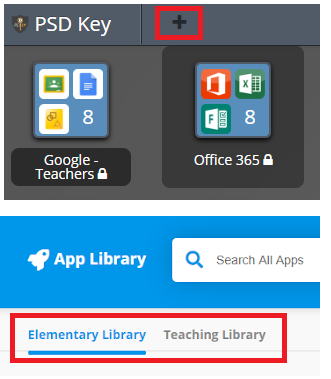
PSD Key allows for you and your students to download apps and add your password information to them, so that it truly becomes a homepage for everything digital at Pennridge.  This can be accomplished by choosing the "+" button in the upper left hand corner of the screen near the PSD Key logo.  When the screen appears, notice that there is an "Elementary Library" and a "Teaching Library."  The Elementary Library is for students, but the Teaching Library is for teachers to find specially designed apps for their own needs.

As always, if there is an app that you would like to add that is not present please send the name of the app and the web url to helpdesk@pennridge.org, and we will do our best to see that it is included in the teaching library.

A huge thank you to Chris Brockman and Mrs. Diane Miller and her team for their successful launch of this amazing, time-saving resource!

Thursday, April 4, 2019

Sway, Seesaw Folders, PSD Key Training Videos

Creative Communicator 

April's ISTE Standard is Creative Communicator.  We will focus on tools this month that help communicate a message clearly and effectively to one's audience.

Featured Communication Tool - Sway

Sway is a presentation tool brought to us by Microsoft Office 365.  Created exclusively online, Sway allows for images, film clips, and other types of media to be inserted seamlessly.  In addition, design elements are easy to implement using a very powerful "Remix" button, and your Sway look great on any size screen, as the app customizes the presentation itself for device sizes.  Check sway out in the Office 365 section of PSD Key and using this basic creation guide or take a brief online course about Sway through the Microsoft Educator Community.


QR Codes using Seesaw Folders

One exceptional feature of Seesaw folders is the ability to create QR codes in mass for content that students have submitted.  This is especially helpful for displaying student work and allowing access to the digital pieces just by scanning the code.  Seesaw will create a page for each student item complete with a QR code to scan.  This is great for events that revolve around student work as it brings their posts to life.

Please see this paper tutorial or Seesaw Video for more information on how to make QR signs for your student posts.


PSD Key Training Videos

We hope that your PSD Key experience has been a positive one and want to reiterate that Chris can come by and help you set this up with your students if it will be helpful.  If you would like a refresher of the training please check out the Tutorials section of the Tech Integrator Page under PSD Key for three short video presentations reviewing all the steps that were presented.

Tuesday, March 26, 2019

Skype with Jane Goodall, PSD Key, Spring Cleaning

1. Skype Experience with Dr. Jane Goodall


Dr. Jane Goodall will empower students to care about our planet and take action to make the world a better place for people, animals, and the environment. 
The 15-minute broadcast will air on

  •  - Tuesday April 2nd at 12:30 Eastern Time
  •  - Tuesday April 9th at 9:00 Eastern Time
and will be followed each time with a live Q&A chat for 30 minutes with Dr. Goodall and the Jane Goodall Institute Roots & Shoots team. Dr. Goodall and the team will try to answer as many student questions as they can. Be sure to use the classroom preparation materials below to get your students ready for this once in a lifetime opportunity!  For more information and to register on the Microsoft Educator community for April 2 or 9th, click here!  If either one of us can help with this setup of this event please let us know!


2.  Building up the PSD Key Library

Now that PSD Key, the Single Sign On portal for Pennridge, is live and in the hands of students and teachers, we want to make it the best experience possible for you and your students. If there is a resource you use, please consider putting an app request to helpdesk@pennridge.org.  All that is needed is the name of the app and the web url for that resource, and we will have an app tile created for that resource.  Then, students can simply grab that tile from the app library - the QuickGuide for PSD Key discusses this process with images.  Please send Chris any questions you might have.


3.  Spring Cleaning

It's that time of the year!  We wanted to remind everyone of some ways to clean up your devices!

  • Devices - Please read here for the tips for cleaning iPads and laptops.
  • Computers - This is a great time to clean off your desktop.  No file is safe on your desktop, so please consider moving your files to the cloud- either OneDrive or Google Drive.  Please see these basic instructions for Google Drive or OneDrive for some assistance in managing your files. 

Thursday, March 21, 2019

Study Island, PSD Key, and Manufacturing Contest

1. Study Island Group Sessions

Grades 3-5 teachers, if you have been wanting to give "Group Sessions" a try and just haven't had a chance to learn about this new feature, please let us know!   There are 3 ways to go about a group session:

A. Checkpoint

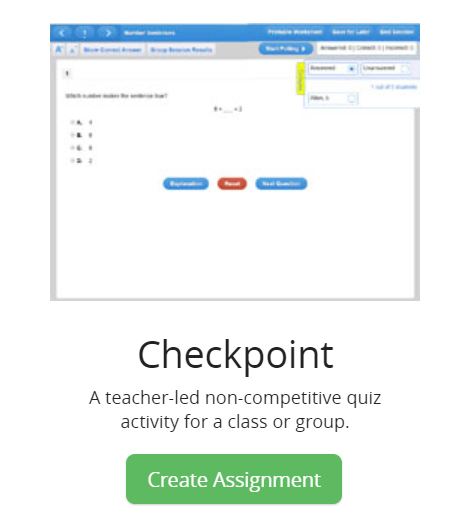
Teacher-led whole group noncompetitive session.


B.  Challenge

Students compete against their classmates in a teacher led session, earning points for correct answers, quick responses, and correct answer streaks.  Students are able to provide an anonymous name, so only the teacher sees the student's real name and data.


C. Race

Students race against each other to answer as many questions as possible as quickly as possible!


If you'd like, you can customize your session on the fly by selecting the exact questions you want your students to see. This means you can pull items from multiple topics, subjects, and even grade-levels into one Group Session tailored just for your students.

For all of these modes, all performance data is available immediately and saved for later review through Study Island’s reporting features.

2.  What's So Cool About Manufacturing? video contest

If you haven't had a chance to vote yet, please vote as often and as much as possible between March 20-March 22 here.  The votes are unlimited.  Feel free to share these videos with your students if it fits into your schedule and/or curriculum.  Students are welcome to vote, too!  Thanks for your support of our Pennridge Students and this beneficial program.  Each video is less than 2.5 minutes!
If you're able to share this flyer via Seesaw or another avenue, we would greatly appreciate it.

3.  PSD Key is Coming

On March 27 Pennridge will launch its Single Sign On Portal called PSD Key, which will allow students and teachers to unlock district and web resources using a single password.  PSD Key has been tested in 12 classrooms this month and has seen very positive results with students and teachers alike.  While many of the resources will not need a username or password to be inputted, some will need you and your students to input this information just one more time and PSD Key will take care of the rest.  On March 27th each elementary school will be trained on PSD Key, and the trainer will model storing a password using your PowerSchool login.   Please be prepared with your username and password for PowerSchool, and consider collecting all of your passwords in one place so they can be logged in PSD Key, which will follow you to any computer you are using. 


Wednesday, March 13, 2019

Activities, Stories from Space, and PBS writing contest

1.  Seesaw Activities

For Seesaw Users who are creating activities - these templates are amazing and easy to use!  Brought to us by Kris Szajner (@KSzajner) and Beth Leighton (@Leighton_Beth), these slides are incredibly easy to integrate into Seesaw.

New to using the Activities library?  Want to try your first activity, but want an extra set of hands when you do? Email us- we would be happy to help!

2.  Story Time from Space

We have posted about Stories from Space before, but we were excited when we saw one of our favorites Rosie Revere, Engineer as part of their library.  Check out Rosie Revere, Engineer by Andrea Beaty and many others on the site here!


3.  Writing Contest

A great way for your students to share what they've learned during their SEL studies or while using the new writing curriculum, the PBS writing contest is happening now.  The PBS Kids Writer's Contest is available for students K-5 and more information can be found here.  Maybe your students could use some of their directed drawings in their creative illustrations?  Let us know how we can help!

We need your help!  
Whats So Cool About Manufacturing

          Next week, we will be sharing a live link for you (and if possible, your students) to vote for our Pennridge "What's So Cool About Manufacturing" video contest teams.  All three of the Pennridge Middle schools have a team of 8th grade students participating in the “What’s So Cool About Manufacturing” video contest.  We are competing against 27 other teams in the area (Philadelphia Region), so we are asking that you view the videos and vote for our Pennridge students between March 20-March 22 to help us earn the "Viewer's Choice Award".  You will be able to vote as much and as often as possible! 


          Students at South Middle School, team JEMBA, traveled to Hyline Offroad which is part of Daria Metal Fabricators in Perkasie.  Central Middle School, team named, Out of the Box Productions, traveled to Secant Group in Quakertown and learned all about biomaterials that facilitate the repair, recovery, and regeneration in the human body.  And finally, in early January, North Mission Impossible team from North Middle School traveled to PennEngineering in Danboro to learn about the fastening industry and new product development technologies. 

          Thank you in advance for your support of these talented students.  We are sure you will see some familiar faces that you most likely had in class or know a sibling of!  To learn more about our teams, and/or if you have any questions, please look for the What’s So Cool icon on the Pennridge School District homepage at https://sites.google.com/a/pennridge.us/pennridge-school-district/ and follow us on Twitter at #capturingmanufacturing.