Wednesday, October 23, 2019

iPad Cases, Splashmath SSO, Seesaw Tip

1.  iPad Case Directions


As the Instructional Technology Department distributes cases for the teacher i-Pads, please see the attached directions for a a short overview and diagram as to how these cases are attached to your iPads.


2. Splashmath Single Sign On


Please see the attached directions for a few short steps on how to make your Splashmath class work with PSD Key and create a single sign on for your students.  


Once you have made these changes, please make sure everyone has the "Splashmath - Pennridge ID" app on their PSD Key Dashboard.


3. Seesaw Tip:  The Power of Three...


Did you know you can edit items after students submit in Seesaw.  This is helpful to rotate a picture (if they forgot to), or to fix a mistake if a student put their work in the wrong student's journal or the wrong folder in your class.  This is also where you can move items into folders if you haven't been using folders yet this year.


To see this menu, click on the three dots on the right hand side of the post, and choose the option that best fits your need.  We hope this helps!


Thursday, October 17, 2019

Teacher iPads


Teacher iPads and PSD Key Access

We hope that the new iPads have been helpful in your classrooms and will be an asset to your teaching for years to come.  This weeks Thursday Three focuses on some items that hopefully will make this experience even stronger for our teachers.


Mirroring, PSD Key Quick Cards, and OneDrive Photo Syncing Tutorials - Three new tools were added recently to the iPads that have been covered in Professional Development sessions.  Below is a short description of their purpose and a linked tutorial connected to these resources.

Image result for mirroring 360 ios
Mirror 360
- Allows for your iPad screen to be projected.


Image result for Classlink IOs
PSD Key Quick Cards
- Provides for a QR sign in to PSD Key rather than typing in their username and password.

Image result for OneDrive IOs
OneDrive Photo Syncing - Automatically sends photos from your iPad to your computer for easier printing and file sharing.

2. Sending Home PSD Key Quick Cards and Letters - As previously stated, Quickcards and parent letters go home with students today!

3. Seesaw on an iPad - When using Seesaw on an iPad, please use the app instead of going through PSD Key because of the robust features the app has available.

Tuesday, October 8, 2019

Coaches Corner *New*, Mandatory PowerTeacher Pro, OTS Spotlights

1. Coaches Corner

Why recreate the wheel?  Some of your math resources are right here for you.


Throughout the next few month's we will highlight some of the amazing resources found on the Everyday Math Virtual Learning Community (VLC).
The Everyday Mathematics Virtual Learning Community (VLC) provides a space for teachers to view and share resources that support mathematics teaching, communicate with other teachers about pedagogy, and take time to reflect on their practice.
Please take a few minutes to sign up if you haven't already done so.  Dana Pivnichny will be referring to the resources throughout the year, and strongly encourages its use.

This month's focus is on the Resources tab of the site.  There are teacher-made printable resources readily available.  Examples include: vocabulary cards, math messages, student work examples, and much more.  You can filter by topic and grade level, which will save you time!

1.  Go to the VLC website at https://vlc.uchicago.edu/login.
2.  In the top right, click Join.  It will take about 3 minutes to sign up, but it's worth it!
3.  If you already have an account,  choose log-in!
4.  Once you are logged in, we recommend the "Resources" tab for your first visit!
5.  Now that you  have an account, don't forget to add this to your PSD Key to help remember your new password!
  •  Go to the Teaching Library in PSD Key.  Search for "Everyday Math VLC".  (See image)

 2.  PowerTeacher

All teachers will need to be using the PowerTeacher Pro for their final grade inputs at the end of the marking period.  If you missed the training at the end of August, here it is.

In addition, here are the basics on a 2 page tutorial sheet for how you'll access the final grade areas for your subjects.

Please do not wait until final input time to open PowerTeacher Pro and navigate through these steps.

3.   OTS Spotlights- Here are a few we are most excited about!

Mimio Basics- November 4-  We will cover the very basics of using a Mimio in your classroom.  If you have one, but aren't sure of how it works, please join us!  Any questions?  Just ask Erin Reichert

Mimio Advanced- December 10-  This will be the Part 2 to the November meeting.  You DO NOT need to attend in November to come to this session.  If you have a Mimio and are fairly comfortable, but want to know more, this is the session for you!  Any questions?  Just ask Erin Reichert

Teach Like a Pirate Book Study-  Beginning in December- This book study will take place over the course of 3 months.  We will begin with a face-to-face meeting on December 11th.  We will then meet two times through online discussions using some technology tools (don't worry, you don't have to be an expert!), and then will meet again face-to-face on March 11, 2020.  This book is a powerful, well-known book in education now and we hope you'll join us.  This PLT opportunity is for 7  total hours (4 for discussions/meetings and 3 for reading) of your district PLT time.  If you have any questions, please see Erin Reichert or Ken Ehrmann.  *Teachers must purchase their own copy of this book prior to our first meeting on December 11.*


Wednesday, October 2, 2019

Stories from Space, OTS highlights, and Seesaw Spotlights

Global Collaboration

For the month of October, we will focus on the ISTE Standard of "Global Collaborator".  We will focus on tools that provide students with the opportunity to engage with people and places outside of their own community. 

1.  Story Time from Space-

What better way to get your students "out of this world" than to have some astronauts share some of our favorite stories from the International Space Station!  Simply click on "Story Time Videos" and choose from over 15 books.  Story Time from Space is a project of the Global Space Education Foundation, a nonprofit foundation.

2.  OTS Highlights

*  PowerTeacher Pro Gradebook  (Elementary specific)

All of you attended the online training for PowerTeacherPro at the end of August, but we know there have been some questions about PTP, especially for use at the elementary level.  The Gradebook feature is not new to Pennridge, but it may be new to you!
 Many teachers have been using the Gradebook features of PowerTeacher for creating assignments, which then makes progress reporting more efficient at the end of the quarter.  An FAQ document will be coming out next week,  which highlights specific elementary features.  However, there will be a district PLT opportunity for any elementary teacher who wishes to use Gradebook this year!  Sign up Here!   Pennridge facilitators Amy Weir and Tracee Myers, who have been using Gradebook for many years, will show you some tips and tricks, and answer any questions you may have.  From teachers who started using last year, many have said "I don't know how I did it without Gradebook.  This makes it so much more efficient!"  If you can't attend the session, but would like to know more, please email Erin at any time!

OTHER TOPICS in OTS coming up:
Seesaw for Special Area Teachers and Guidance Counselors
- October 8

If you are special area teacher, you are invited to come to learn more about how Seesaw can be utilized in your classrooms.  We will go over the basics of Seesaw, but also take a look at the already-made Activities in the Activity Library, as well as ways to edit, and create your own activities.  There will be time to explore, create, and ask questions.  Bring your laptop (and/or iPad) with you.

3.  Seesaw Spotlight

In November, please use this link to sign up in OTS for Seesaw PD in your PJ's for District PLT time.  Sign up now and at the beginning of November, the calendar will be shared with you and you can pick the activities you are most interested in (totaling 1 hour).  This training is completed online.

Students responded to their reading on the activity sheet provided.  The students then used the camera feature to snap a picture of a response (or multiple responses).  The students used the Text Tool to share a "Glow and Grow" for next time!  


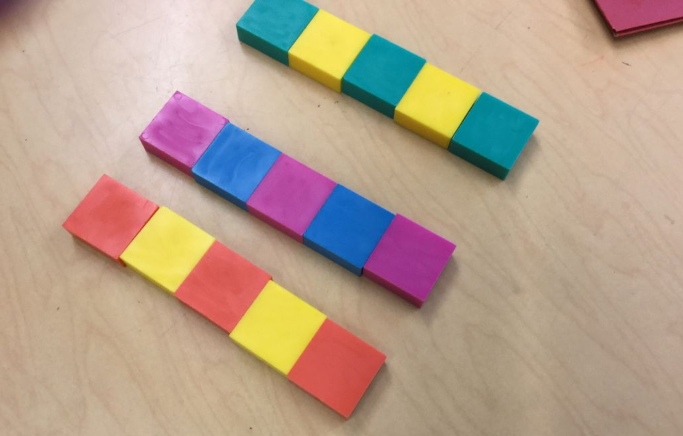
Patterns in Math Class-  Many students in Kindergarten and First Grades are creating patterns, are practicing with the camera tool, and some are also using the microphone to tell about their pattern.  


Monday, September 23, 2019

OTS highlights, PSD Key in Math, and Seesaw Spotlights

1.  OTS Highlights

Have you checked out some of the latest PLT opportunities in OTS?  Here are just a few we are especially excited about, but we encourage you to view the catalog to find one just right for you!

October 8- Seesaw for Special Area Teachers
October 10- (will be posted in OTS soon)  Save the date-  Power Teacher Pro for elementary teachers- using the gradebook features to help save you time during progress reporting, and to provide up-to-date data for Child Study meetings, data meetings, and more!

2.  PSD Key 


If you are having trouble with a single sign on app that had worked previously but your password changed, please consider right clicking the app in question and choose update password.  From there you are able to edit the passwords stored.

This is very common for apps such as EPIC, which require a different code each year.  For these apps, students need to right click the app, choose "update password" and then "edit" to change the code to the new one.  Then the single sign on will work seamlessly.

3.  Seesaw Spotlight

As of Friday, September 20, we have over 2,600 families connected in Seesaw!  We are thrilled with this data and we thank you for your continued support of Seesaw.  At this point, if you have any families not connected, we encourage you to send them an email invite through Seesaw and/or reach out personally.  If a family has any reservations about joining, perhaps you can ease their mind about what Seesaw is and what it can do for our learners.

September has been a great month in Seesaw and we have seen many teachers getting "their feet wet" by sharing pictures of students, homework assignments, newsletters, and more!  Please remember when posting more than one student in a picture that all families have agreed to and signed the Pennridge media release form.  If you are unsure, the safest bet at this time is using photos with only 1 student portrayed.  We have also put out reminders to parents to be sure not to share photos with more than their child portrayed on social media such as Twitter and Facebook.

For a new Seesaw user- A good goal for October is getting your students to post to their journal.  Again, we encourage starting small with one Seesaw tool at a time and building on.  We would love to help you and your students with that.  In the month of September, with 18 days down, I was able to teach 19 student Seesaw lessons to a variety of grade levels.  My personal goal for October is to teach at least 1 Seesaw lesson with students per day (or another 20 lessons).  This could be whole group or during station rotations- whatever works for you!   Help me reach my goal! :)  -Erin
Pattern Making to 5


Here is an example of how one student took a picture of their learning and posted to his/her journal in one of our kindergarten classrooms.


Another great post we saw upper elementary students complete was from the Activity Library.  In this activity, students not only talk about things they love, but they also get to know the many tools of Seesaw- especially drawing and text.


Seesaw Social- Rescheduled-  Originally we scheduled our Seesaw Social for October 5th, but with the upcoming KolorRun at the high school, we have postponed our Social until 2020.  


Monday, September 16, 2019

Sept. 19th- EPIC and Seesaw Spotlights

ISTE Standards in our Classrooms

Again this school year, our blog posts will feature technology tools that empower student learning.  A strong resource for understanding these possibilities comes to us from the International Society for Technology Education (ISTE), which has created a student centered set of standards that represent much of Pennridge's focus on technology.

This month we will focus on the "Empowered Learner".  We will focus on tools that provide student choice and voice within their classroom activities. 


1.  EPIC! books

For those of you who may not be familiar with EPIC!, we have created a brief tutorial to help you get started.  EPIC! is the Netflix of books!  You can simply add students, and even create groups to choose specific books (collections) and levels for that particular group of students.

Even if you have used EPIC in the past, you might not have realized that EPIC added 2500 more titles and some other exciting features:

1.   Filter with Ease-  Find the right books with enhanced filters.   You can now filter by reading level, fiction/non-fiction, language, and titles with end-of-book quizzes!

2.  Student Self-Service-  For grades 3 and up, students can now create their own profiles with your class code.  Less work for you and student login is a breeze!

3.  Assign Individual Books- Now you can create personalized experiences for each student by assigning individual books instead of full collections.

And don't forget to download and print this year's Readerpillar HERE!  

Seesaw Spotlight

2.  Students read the story No, David.  After reading, students discussed the rules that David did not follow.  The students then discussed the rules of the classroom and why they are important.  Each group of students then used the speech bubble feature (or drew their own speech bubble) to review one of the class rules.
3.  First graders used the Activities library to practice using the drawing tools in Seesaw.  This activity is easily adapted for all grade levels practicing with the tools.  Maybe your students will use text features and/or record themselves telling about their families.   All activities are editable!


Wednesday, September 11, 2019

September 12- Outlook Signature and Seesaw Spotlights

1.  Email Signature

Changing your Signature in Microsoft Outlook

If you need to update your signature with a new teacher assignment, new phone number, new website, etc, please follow these steps:
  • Open Outlook (make sure you are using the App Version, which is found in your start window and titled "Outlook 2016")
  • Choose File in the top Left and Scroll to Options.
  • Select Mail and Signatures (See image)
  • Remember your signature should include your building, your position, your phone number and extension, and any other information you feel would be helpful.

Seesaw Spotlight

2.  First time posting?

Are you wondering where to start with your students?  Our advice- Start Small, then build up to incorporating the other features.
Here are a few suggestions for first time posts that can be used/adapted for any grade level:
  • Students take a picture of something in the classroom.  Have the students draw or record on the picture.  This could be something they are excited to learn about this year, some class rules, or maybe their desk with a recording of what they hope to accomplish this year.  
  • Students take a picture of the book they are reading.  They can simply post the picture, or they could record themselves explaining why they chose the book.
  • Text Tool icon
  • Students take a selfie.  They use the Text tool to record 3 words to describe themselves.
  • Students can take a picture of most anything they have created this week- perhaps it's their goals for the year, a realistic drawing or creation of themselves, or a picture of something they created after a read-aloud story.  

3.  Family Invitations-  

In the Pennridge letter that was sent home with your family QR codes earlier this year, we asked parents to sign-up for Seesaw by September 6.  Knowing that the beginning of the year is quite hectic, we wanted to show you how you can invite those families that have yet to join your class.  Follow the quick steps HERE to print those families' QR codes.  This ONLY needs to be done by homeroom teachers, as the codes will be the same for a student that is dual-enrolled in more than one class.  Any questions, just ask!