Wednesday, October 2, 2019

Stories from Space, OTS highlights, and Seesaw Spotlights

Global Collaboration

For the month of October, we will focus on the ISTE Standard of "Global Collaborator".  We will focus on tools that provide students with the opportunity to engage with people and places outside of their own community. 

1.  Story Time from Space-

What better way to get your students "out of this world" than to have some astronauts share some of our favorite stories from the International Space Station!  Simply click on "Story Time Videos" and choose from over 15 books.  Story Time from Space is a project of the Global Space Education Foundation, a nonprofit foundation.

2.  OTS Highlights

*  PowerTeacher Pro Gradebook  (Elementary specific)

All of you attended the online training for PowerTeacherPro at the end of August, but we know there have been some questions about PTP, especially for use at the elementary level.  The Gradebook feature is not new to Pennridge, but it may be new to you!
 Many teachers have been using the Gradebook features of PowerTeacher for creating assignments, which then makes progress reporting more efficient at the end of the quarter.  An FAQ document will be coming out next week,  which highlights specific elementary features.  However, there will be a district PLT opportunity for any elementary teacher who wishes to use Gradebook this year!  Sign up Here!   Pennridge facilitators Amy Weir and Tracee Myers, who have been using Gradebook for many years, will show you some tips and tricks, and answer any questions you may have.  From teachers who started using last year, many have said "I don't know how I did it without Gradebook.  This makes it so much more efficient!"  If you can't attend the session, but would like to know more, please email Erin at any time!

OTHER TOPICS in OTS coming up:
Seesaw for Special Area Teachers and Guidance Counselors
- October 8

If you are special area teacher, you are invited to come to learn more about how Seesaw can be utilized in your classrooms.  We will go over the basics of Seesaw, but also take a look at the already-made Activities in the Activity Library, as well as ways to edit, and create your own activities.  There will be time to explore, create, and ask questions.  Bring your laptop (and/or iPad) with you.

3.  Seesaw Spotlight

In November, please use this link to sign up in OTS for Seesaw PD in your PJ's for District PLT time.  Sign up now and at the beginning of November, the calendar will be shared with you and you can pick the activities you are most interested in (totaling 1 hour).  This training is completed online.

Students responded to their reading on the activity sheet provided.  The students then used the camera feature to snap a picture of a response (or multiple responses).  The students used the Text Tool to share a "Glow and Grow" for next time!  


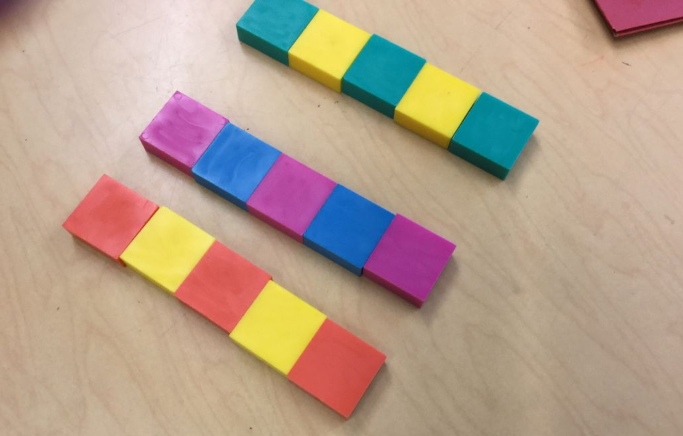
Patterns in Math Class-  Many students in Kindergarten and First Grades are creating patterns, are practicing with the camera tool, and some are also using the microphone to tell about their pattern.  


Monday, September 23, 2019

OTS highlights, PSD Key in Math, and Seesaw Spotlights

1.  OTS Highlights

Have you checked out some of the latest PLT opportunities in OTS?  Here are just a few we are especially excited about, but we encourage you to view the catalog to find one just right for you!

October 8- Seesaw for Special Area Teachers
October 10- (will be posted in OTS soon)  Save the date-  Power Teacher Pro for elementary teachers- using the gradebook features to help save you time during progress reporting, and to provide up-to-date data for Child Study meetings, data meetings, and more!

2.  PSD Key 


If you are having trouble with a single sign on app that had worked previously but your password changed, please consider right clicking the app in question and choose update password.  From there you are able to edit the passwords stored.

This is very common for apps such as EPIC, which require a different code each year.  For these apps, students need to right click the app, choose "update password" and then "edit" to change the code to the new one.  Then the single sign on will work seamlessly.

3.  Seesaw Spotlight

As of Friday, September 20, we have over 2,600 families connected in Seesaw!  We are thrilled with this data and we thank you for your continued support of Seesaw.  At this point, if you have any families not connected, we encourage you to send them an email invite through Seesaw and/or reach out personally.  If a family has any reservations about joining, perhaps you can ease their mind about what Seesaw is and what it can do for our learners.

September has been a great month in Seesaw and we have seen many teachers getting "their feet wet" by sharing pictures of students, homework assignments, newsletters, and more!  Please remember when posting more than one student in a picture that all families have agreed to and signed the Pennridge media release form.  If you are unsure, the safest bet at this time is using photos with only 1 student portrayed.  We have also put out reminders to parents to be sure not to share photos with more than their child portrayed on social media such as Twitter and Facebook.

For a new Seesaw user- A good goal for October is getting your students to post to their journal.  Again, we encourage starting small with one Seesaw tool at a time and building on.  We would love to help you and your students with that.  In the month of September, with 18 days down, I was able to teach 19 student Seesaw lessons to a variety of grade levels.  My personal goal for October is to teach at least 1 Seesaw lesson with students per day (or another 20 lessons).  This could be whole group or during station rotations- whatever works for you!   Help me reach my goal! :)  -Erin
Pattern Making to 5


Here is an example of how one student took a picture of their learning and posted to his/her journal in one of our kindergarten classrooms.


Another great post we saw upper elementary students complete was from the Activity Library.  In this activity, students not only talk about things they love, but they also get to know the many tools of Seesaw- especially drawing and text.


Seesaw Social- Rescheduled-  Originally we scheduled our Seesaw Social for October 5th, but with the upcoming KolorRun at the high school, we have postponed our Social until 2020.  


Monday, September 16, 2019

Sept. 19th- EPIC and Seesaw Spotlights

ISTE Standards in our Classrooms

Again this school year, our blog posts will feature technology tools that empower student learning.  A strong resource for understanding these possibilities comes to us from the International Society for Technology Education (ISTE), which has created a student centered set of standards that represent much of Pennridge's focus on technology.

This month we will focus on the "Empowered Learner".  We will focus on tools that provide student choice and voice within their classroom activities. 


1.  EPIC! books

For those of you who may not be familiar with EPIC!, we have created a brief tutorial to help you get started.  EPIC! is the Netflix of books!  You can simply add students, and even create groups to choose specific books (collections) and levels for that particular group of students.

Even if you have used EPIC in the past, you might not have realized that EPIC added 2500 more titles and some other exciting features:

1.   Filter with Ease-  Find the right books with enhanced filters.   You can now filter by reading level, fiction/non-fiction, language, and titles with end-of-book quizzes!

2.  Student Self-Service-  For grades 3 and up, students can now create their own profiles with your class code.  Less work for you and student login is a breeze!

3.  Assign Individual Books- Now you can create personalized experiences for each student by assigning individual books instead of full collections.

And don't forget to download and print this year's Readerpillar HERE!  

Seesaw Spotlight

2.  Students read the story No, David.  After reading, students discussed the rules that David did not follow.  The students then discussed the rules of the classroom and why they are important.  Each group of students then used the speech bubble feature (or drew their own speech bubble) to review one of the class rules.
3.  First graders used the Activities library to practice using the drawing tools in Seesaw.  This activity is easily adapted for all grade levels practicing with the tools.  Maybe your students will use text features and/or record themselves telling about their families.   All activities are editable!


Wednesday, September 11, 2019

September 12- Outlook Signature and Seesaw Spotlights

1.  Email Signature

Changing your Signature in Microsoft Outlook

If you need to update your signature with a new teacher assignment, new phone number, new website, etc, please follow these steps:
  • Open Outlook (make sure you are using the App Version, which is found in your start window and titled "Outlook 2016")
  • Choose File in the top Left and Scroll to Options.
  • Select Mail and Signatures (See image)
  • Remember your signature should include your building, your position, your phone number and extension, and any other information you feel would be helpful.

Seesaw Spotlight

2.  First time posting?

Are you wondering where to start with your students?  Our advice- Start Small, then build up to incorporating the other features.
Here are a few suggestions for first time posts that can be used/adapted for any grade level:
  • Students take a picture of something in the classroom.  Have the students draw or record on the picture.  This could be something they are excited to learn about this year, some class rules, or maybe their desk with a recording of what they hope to accomplish this year.  
  • Students take a picture of the book they are reading.  They can simply post the picture, or they could record themselves explaining why they chose the book.
  • Text Tool icon
  • Students take a selfie.  They use the Text tool to record 3 words to describe themselves.
  • Students can take a picture of most anything they have created this week- perhaps it's their goals for the year, a realistic drawing or creation of themselves, or a picture of something they created after a read-aloud story.  

3.  Family Invitations-  

In the Pennridge letter that was sent home with your family QR codes earlier this year, we asked parents to sign-up for Seesaw by September 6.  Knowing that the beginning of the year is quite hectic, we wanted to show you how you can invite those families that have yet to join your class.  Follow the quick steps HERE to print those families' QR codes.  This ONLY needs to be done by homeroom teachers, as the codes will be the same for a student that is dual-enrolled in more than one class.  Any questions, just ask! 


Friday, August 30, 2019

Welcome Back-VPN, computer font size, and Seesaw

Welcome Back! 

1.  Benefits of the VPN: Global Connect

Whenever using your laptop outside of the district, please consider connecting to the VPN while working  When you are connected to the VPN, you will be able to use any of the functions of your machine just as if you are at school, such as:
  • Accessing the U: Drive
  • Using Microsoft Outlook, including sending e-mails, managing your calendar, and viewing your to-do lists.
  • Using the Follow Me Printers, including the ability to print the night before and release the document right when you walk in the building the next morning.
You may have noticed Global Connect popping up on your computer.  This takes the place of our Cisco server.  Simply type in remote.pennridge.org (only the first time) to access the VPN and you will prompted for your username and password.  This will only work after you've access your home Wifi, and must only be done out of district.  This can be helpful at workshops, out of district conferences, etc.

2.  Computer Font is TOO small!

Since your computer was imaged over the summer, you may have noticed that everything seems smaller.  To change this, please follow this 1-2 minute process!  Click here!


 3.  Seesaw

Sharing a Welcome Post to students or families? 

  • If so, you will want to post to the "Student Journal" in Seesaw if the students/families are not yet connected.   If you select Announcement, only students/families that are already signed-in will see the announcement.    Once everyone is signed in, then the Announcement feature is the way to go!

        Seesaw Translates for up to 55 languages! 

  • If a note, caption, comment, announcement, or message is written in a language that is different from the language of a family's or teacher's device, a "See Translation" option appears below the post.  Tap that button, and Seesaw automatically translates any text into your native language.  Note:  Students do not have access to this feature.  Please view this video if you have families in your class who would benefit from this amazing feature.

QR Code Access

  • Please make sure your Family QR codes go home with your students. Your class code is different and should ONLY stay in the classroom!

Social Media

  • Follow Seesaw on Twitter @Seesaw or follow "Seesaw Teachers" on Facebook for tons of ideas and tips/tricks from other teachers around the world.  In addition, for most any tutorial made by Seesaw, search on Youtube or view their "PD in our PJs" live webinars or recorded tutorials!


Thursday, May 30, 2019

21st Century Learning Night, Seesaw Activities, Integration Infographic


1. Thank you for another successful 21st Century Learning Night!

We want to take the opportunity to thank all the students, teachers, and staff members that helped make 21st Century Learning Night a success again this year.  It was truly a special evening celebrating innovative teaching this year.  The 21st Century Learning Night Website has a summary of all the fascinating exhibits that presented.
For a short clip of pictures of the night, please click here!


2. Seesaw for Schools Feature - Scheduled Activities

One of the new features Seesaw allows is for you to schedule an activity for students to complete.  Activities allow you to give clear instructions for students to work with, including a narration of your own voice reading the instructions and a step by step list of tasks using the Seesaw iconography they will have to click on.  This way you can plan the activity ahead of time and have it automatically released to your students before they will start working on it.  

Seesaw offers excellent professional develop and click-by-click instructions on how to use this and other features.  For the activities library in general click here or for the scheduling feature click here.

If you are new to Seesaw, a general instructional guide to Seesaw created by Erin and Chris can be found here.


3.  Guidelines for Implementing Instructional Activities

Designed by a fantastic group of Elementary teachers, this infographic was created to help teachers scaffold their lessons with the use of technology.  Over the remainder of this year and next, we will incorporate these questions into the blog with some instructional strategies that demonstrate how these questions can guide instruction.  This is a really important tool to be used when designing lessons and we hope it's helpful!

Note: the infographic will be printed and distributed for posting in classrooms in August, but if you would like to print one right now please choose 11x17 paper, which is the size that the graphic is formatted to.

More information regarding these guidelines with be forthcoming at the beginning of the 2019-2020 school year.

Wednesday, May 8, 2019

Highlights

In this busy time of year we wanted to provide a very useful iPad tip and highlights of what's to come in Pennridge.

1. iPad Tip- Using the new Close Tab Feature in Safari

As multiple students use the iPads the amount of tabs open in Safari can get pretty large very quickly.  A new iPad update allows you to close all of these tabs with one click.  When you hit the small square in the upper right hand corner you will see the tabs normally.  However, holding the done button in the upper right hand corner will allow you to close all your tabs with one click. 

2. Seesaw for Schools

Pennridge Elementary schools will be transitioning to Seesaw for Schools this week!  This premium version of Seesaw offers some excellent new features such as additional multiple co-teachers, scheduled assignments, and school wide activity libraries.  We will be featuring some of these new features in the coming weeks and during the June professional development days.  A short summary of these features can be found here.Your students and parents won't see a difference in their access, but we hope you find the new features of Seesaw for Schools helpful!

3. 21st Century Learning Night

Please consider supporting your fellow teachers as they present at this year's 21st Century Learning Night, which will be held at Pennridge High School on May 28, 2019 from 6:30 to 8:30 pm.  Students and teachers will be demonstrating the innovative projects and lessons they have worked so hard to complete over the course of the year.  In addition to seeing our students at their best, it is also a great way to see what other teachers are doing in their classrooms.  We hope to see you there!