Wednesday, November 27, 2019

BrainPop, Seesaw and Thanksgiving

1.  Brainpop and BrainPop Jr.

Through our Science supervisor, we have several accounts for BrainPop. and BrainPop Jr.  If you would like, ONE TEACHER per grade level in your building should activate the BrainPop account using this code:  ZCRP4923.  If you need further assistance, please let us know!


If you haven't used BrainPop Jr. lately, they have really increased their features!  In addition to quick videos that students love, they have features shown in the image on the right!


2.  Seesaw

We found this blog about Seesaw and its features to be a quick and easy read and wanted to share with you.  Perhaps you'll read about something you didn't already know!?  Click Here!

3.  Happy Thanksgiving

We hope you all have a wonderful Thanksgiving holiday with your family and friends.  We are thankful to work in this district with you all!


Wednesday, November 20, 2019

Twitter, Ozobots, Seesaw for Thanksgiving

1. Twitter in Pennridge

Tips from Kallie Cooper - Pennridge's Public Relations and Communication Coordinator

Twitter is an excellent way of sharing all the wonderful things happening in your classroom with the community and your colleagues. Here are some tips on how to effectively use Twitter or get started!

  • Hashtag (#) vs. Handle (@): Including a # in your tweet is great for connecting with other users who are also posting about the same topic. It is also a great way to brand your Twitter account or connect large groups of people at an event. For example, with you include #MondayMotivation in your tweet and click on the hashtag, you will see all twitter users who added the same hashtag. At Pennridge, we use #PennridgeProud if possible, please include this in your tweets! To tag someone else in your tweet, you would use the @ symbol and add what is called their handle or username on Twitter. For example, if you are a teacher at Deibler, you may want to include the Deibler Twitter handle in your tweets. You would tag them by typing @PSDDeibler. These tips are great to include in your tweets to connect and engage with others.
  • Professional Account: To further brand the district and also clearly define professional accounts, we are asking teachers, buildings, principals, etc. to include PSD in the being of your Twitter Handle. For example, @PSDMsCooper or @PSD_Cooper. This clearly communicates that your Twitter is a professional account associated with the Pennridge School District.
When using Twitter in Pennridge, please make sure to use the web version of your Twitter account, as Twitter will not work on your teacher iPad.

If you are using Twitter for professional reasons, please update your Twitter handle to show PSD at the start of your handle. For example: PSD_EReichert. Please do not do this if you use your Twitter for personal reasons.

2.  Ozobots
All 1-5 students will experience Ozobots this year in their STEM classes beginning in the 2nd marking period.  However, we encourage you to think of Ozobots in all parts of your curriculum, and we can help!

Ozobots are small coding robots that are programmed using colored markers or using the computer, and are fantastic devices to introduce students to coding, from Kindergarten all the way through much older students.  We have 18 Ozobots that we would love to come use in your classroom!

All you need to do is let us know 2-3 times that might work for you.  We will bring all the materials needed for a 45 minute-1 hour lesson.  If you want to get some ideas of how we might use Ozobots , you can find lessons in the Lesson Library on their website here. Some of our favorite lessons that we've done in the elementary schools in the district can be found in this Google Ozobots Shared folder, as well as resources.  We can easily tie most any holiday into Ozobot use, as well, so this time of the year is the perfect time!  Please see your building STEM teacher or either of us anytime!


3.  Seesaw Spotlights:

While there are many activities for Thanksgiving,  here are a few to get you started!

  •  Favorite Foods  


  • Thanksgiving Word creations


  • Count and Write


Seesaw Reflection

Quick Look Images with 10s Frames completed in one of our 2nd grade classrooms, Click Here to watch! This is a great way to show learning through a variety of tools ALL within Seesaw!

Thursday, November 14, 2019

Labeling iPads, PSD Key App Creation, OTS Spotlights

1.  Labeling your Teacher iPad

If you have not already done so, please use a piece of tape or label to mark the back of your teacher iPad with your last name and room number.  This will help us to find the owner in a quick and easy way if your iPad is left somewhere in the building!

2. PSD Key App Creation Reminders

A couple of notes to really maximize time saving through PSD Key:

  • Check the Professional Resources Folder - Many of the apps that we use professionally as teachers are already pre-loaded in the red Professional Resources folder on your PSD Key Dashboard.  These apps will now appear in the teaching library with a "lock" so that we can all tell whats already in this folder.  If you can find a moment, it is best to type in all your usernames into these apps so that you don't have to look them up later.
  • To check or not to check - Teachers have started to add their own apps to replace bookmarks, which is really great!  This can be done by choosing the "Add Your Own App" in the upper right hand corner of the App library screen.  Then, PSD Key will ask you to name the app and put the url.  You will also notice a small check box at the bottom.
    • Please check this box if this website requires a sign in.  Chris Brockman will create an app to save your password.
    • Please do not check this box if it is a simple weblink bookmark.


3.  Upcoming OTS Spotlights:

The below sessions are all being offered for district PLT.  Talk to your building principal if you see benefit in holding a similar session for building PLT.

December 5Mimio Basic Training-(one hour) This session will be the same session that was offered on November 5th.  However, it is back by popular demand!  In this session, we will go over the basics ins/outs of Mimio, the tools, and also a quick look at Mimioconnect.com.

December 10- Mimio Advanced- (one hour)  In this session, teachers will have an opportunity to ask questions, but also will be given time to create presentations, play with the gallery tools, and/or "mimio-fy" a previous presentation!

December 11- March 11Teach Like a Pirate Book Study (7 hours)-  This book study offered by Erin Reichert and Ken Ehrmann will kick off on December 11th with a face-to-face meeting, following up with some online discussions, and wrapped up on March 11th with a final face-to-face meeting.  The OTS sign-up for this book study will CLOSE on Friday, November 22, so sign up today!  All participants are required to purchase their own book.


Thursday, November 7, 2019

Review of important updates

This week we are reviewing some important topics!

1.  Seesaw- Private Teacher Folder

As you prepare for parent-teacher conferences, please remember you have a private teacher folder!  This folder is for ONLY you to see.  For teachers who are having students create a marking period reflection or a message to parents for Parent Teacher conferences, this folder is the perfect place to "hide" the post.  After conferences, simply move the post into another folder.  Or, if you'd prefer to always keep the item private, leave those items there!
*To add something to the Private folder, when approving the post, simply click on the 3 dots and choose Private folder.

2.  iPad Case Directions

As the Instructional Technology Department distributes cases for the teacher i-Pads, please see the attached directions for a a short overview and diagram as to how these cases are attached to your iPads.

3. Splashmath Single Sign On


Please see the attached directions for a few short steps on how to make your Splashmath class work with PSD Key and create a single sign on for your students.  


Once you have made these changes, please make sure everyone has the "Splashmath - Pennridge ID" app on their PSD Key Dashboard.


Thursday, October 31, 2019

Conferences with Seesaw, Skype, and Scholastic

If you are reading this, then you survived another Halloween in an Elementary School!!


1.  Conferences with Seesaw


As Seesaw is fantastic for student engagement and empowering children as learners, we love to celebrate their ability to advocate for themselves as learners.  We learn from reflecting on experiences, good and bad.  Consider encouraging participation (and have them lend you a hand!) in picking work they’re proud of. Ask students to think back on their progress or look to the future about what they’d like to learn.


Here are a few ideas to get started:

1.  Have the students take a selfie.  Using the text tool, students can record 3-5 words to describe how they feel about the 1st marking period.
2.  Many teachers use a reflection sheet of some kind.  Have students take a picture of the sheet and use the microphone to record their voice completing sentences such as the ones found here on this WORD document.  When recording, it's always a good idea to have kids practice what they will say using a "script" of some kind!


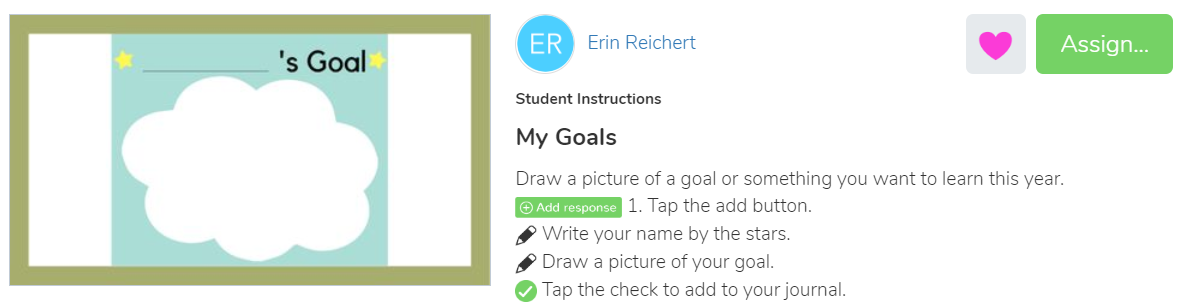
3.  Grades K-2:  Erin has created an activity in the Seesaw Activity District Library titled "My Goals".  Students use the drawing tool to draw their goal for the next marking period.
Optional- you can have the students add their voice if you would like!


4.  Grades 3-5:  Erin has created a one page activity in the Seesaw Activity District Library titled  "Marking Period Reflections".  Students use the Text tool to reflect.


2.  Skype in the Classroom


Pennridge will be using the standard Skype app for Global Connections this year.  Recently it was remotely installed to all teacher computers, so the software is ready to use.  We have created Skype usernames by building to make connections simpler this year, so if you would like to use one of these usernames please contact Erin or Chris and they will be happy to help set it up.

Don't forget about the Microsoft Educator Community, where there are great opportunities for every discipline!  Just make sure to use your Skype username when exchanging information with a speaker (Skype for Business is no longer available) or use the the building name Erin or Chris can provide for you.
If you want to Skype and are nervous about connecting, feel free to contact Erin or Chris and they will gladly help you get started, as it is a fantastic opportunity for kids.

3.  Scholastic Writing Opportunity for Pre-K-6th grade!


Are you looking for a unique way to publish your students' work?  Scholastic is offering an Easy Thanksgiving Book Project HERE.  Motivate your students to do their best work, build upon their reading and writing skills, and create a treasured keepsake!  It can be as easy as putting an existing lesson onto their paper!  Students create stories and illustrations digitally or on paper.  As the teacher, you submit the book (they provide the prepaid postage) when complete and they will publish the book with a deluxe hard cover for your classroom.

Wednesday, October 23, 2019

iPad Cases, Splashmath SSO, Seesaw Tip

1.  iPad Case Directions


As the Instructional Technology Department distributes cases for the teacher i-Pads, please see the attached directions for a a short overview and diagram as to how these cases are attached to your iPads.


2. Splashmath Single Sign On


Please see the attached directions for a few short steps on how to make your Splashmath class work with PSD Key and create a single sign on for your students.  


Once you have made these changes, please make sure everyone has the "Splashmath - Pennridge ID" app on their PSD Key Dashboard.


3. Seesaw Tip:  The Power of Three...


Did you know you can edit items after students submit in Seesaw.  This is helpful to rotate a picture (if they forgot to), or to fix a mistake if a student put their work in the wrong student's journal or the wrong folder in your class.  This is also where you can move items into folders if you haven't been using folders yet this year.


To see this menu, click on the three dots on the right hand side of the post, and choose the option that best fits your need.  We hope this helps!


Thursday, October 17, 2019

Teacher iPads


Teacher iPads and PSD Key Access

We hope that the new iPads have been helpful in your classrooms and will be an asset to your teaching for years to come.  This weeks Thursday Three focuses on some items that hopefully will make this experience even stronger for our teachers.


Mirroring, PSD Key Quick Cards, and OneDrive Photo Syncing Tutorials - Three new tools were added recently to the iPads that have been covered in Professional Development sessions.  Below is a short description of their purpose and a linked tutorial connected to these resources.

Image result for mirroring 360 ios
Mirror 360
- Allows for your iPad screen to be projected.


Image result for Classlink IOs
PSD Key Quick Cards
- Provides for a QR sign in to PSD Key rather than typing in their username and password.

Image result for OneDrive IOs
OneDrive Photo Syncing - Automatically sends photos from your iPad to your computer for easier printing and file sharing.

2. Sending Home PSD Key Quick Cards and Letters - As previously stated, Quickcards and parent letters go home with students today!

3. Seesaw on an iPad - When using Seesaw on an iPad, please use the app instead of going through PSD Key because of the robust features the app has available.